
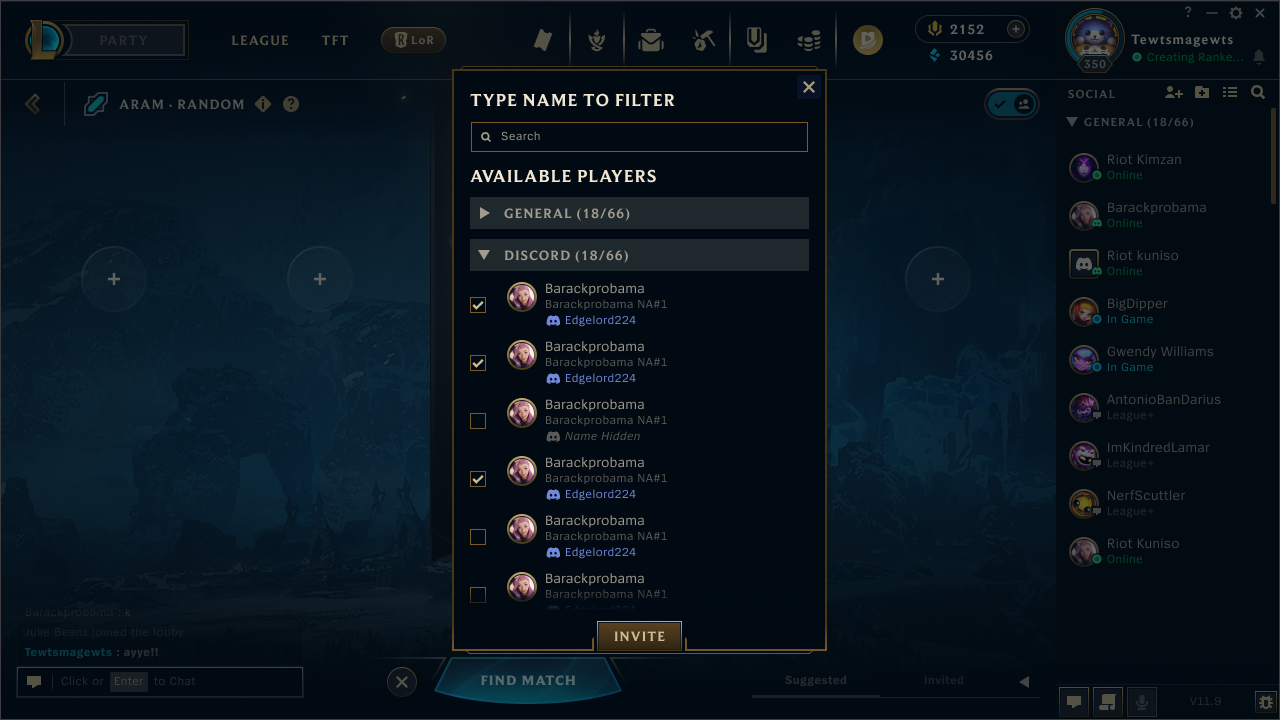
Close the gap between the Rift and your Discord friends with Discord Account Linking.
Linking Your Riot Account to Your Discord Account
There are three ways to link your Riot Account to Discord (and vice versa): From Discord's settings, from Riot's Account Management site, and in the League of Legends Client.
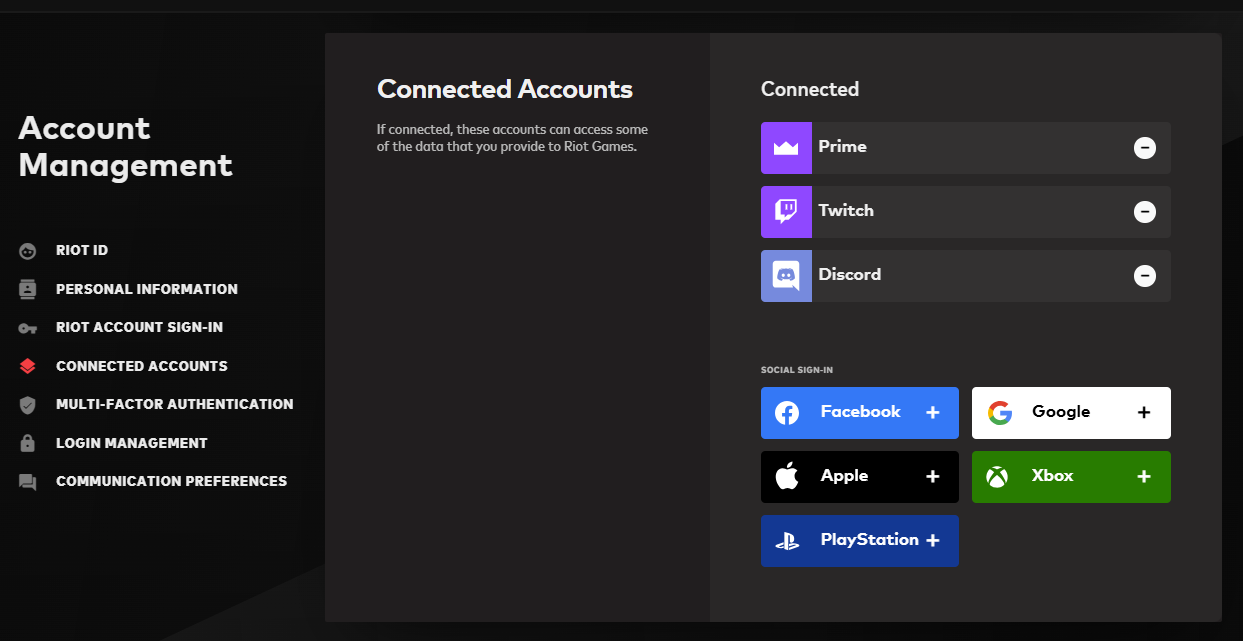
Riot's Account Management Page
- Log in to account.riotgames.com with your username and password.
- Scroll down to Connected Accounts and select the Discord button.
- Confirm the prompts (you may be asked to log in to Discord).
- Enjoy a better view into what all of your friends are playing!
League of Legends Client
- Open League of Legends and select Add Friends.
- Select Connect Discord Account.
- Confirm the prompts (you may be asked to log in to Discord).
- Invite your friends to the Rift!
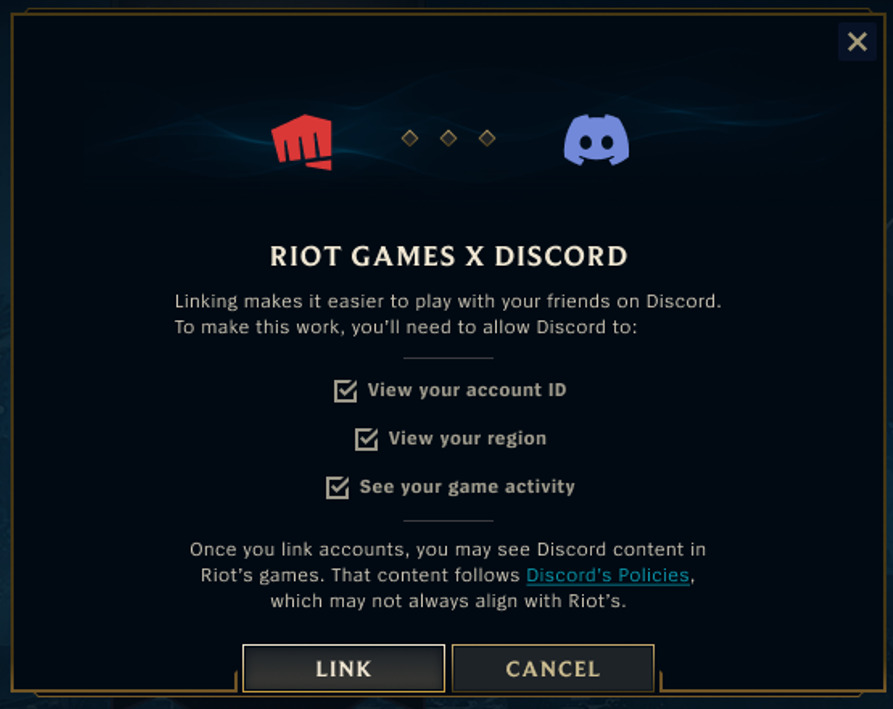
Universal Friend List
After linking your account, your Friend List automatically updates to display Discord friends who've also linked their Riot Accounts in your social panel, while all of your Riot friends display their Discord name and status - even if you're not friends on Discord (but only if they have also linked their accounts).
Universal Friend List Features:
Discord-Only Friends (Discord-Linked)
- Discord status (online / offline)
- Whether they are playing the same game as you
- Discord display name
Riot Friends (Discord-linked)
- Riot status (online, away, busy, etc.)
- Activity information (game, platform, region, etc.)
- Discord display name
Other Features
- Add your Discord-only friends as Riot friends
- Remove/Block a Riot friend without affecting your Discord friendship status with them
- Invite your online friends to your party from the social panel
If you choose to unlink your Discord account, your Discord-only friends disappear from your Friend List, but the Discord info of your Riot friends may remain until your next login.
Joining a Match via Invite
When your friends send you an invite to join them, you receive it as a message in your Discord client. This invite gets live updates to the party's status.
Clicking Join on an invite takes you to your friend's party faster than a recall to the fountain! Just remember: if the party you were invited to no longer exists (the party has joined a game or disbanded), your invite link expires and turns into a 'Launch Game' option. Clicking it when your Riot Client is closed automatically launches League (if your Riot Client is already running, nothing will happen).
Inviting Friends to Your Party from Discord
You and your friends can send invites from the Discord client by right-clicking a user and selecting "Invite to Join". You can even send an invite to an entire server channel. Grab those spots before the party fills up!
Discord Integration Features
While there are plenty of perks from the Riots side, there are also benefits on Discord. Every time you're in a game, your Discord displays:
- The number of members in your current party
- How long since your party was created
- What game mode you're currently playing
If you're in an open party that still has space, your friends will see a "Join" button, making it super easy to jump into your party. For closed parties, this button appears as "Ask to Join", so if any of your friends clicks it, you'll receive a message in your Discord client that you can choose to accept (or not).
Unlinking Your Discord Account
Changed your mind? No biggie! You can easily unlink your Discord and Riot Accounts from either side. On the Riot Account Management website, just look for "Connected Accounts" and click the minus (-) button next to your Discord link.
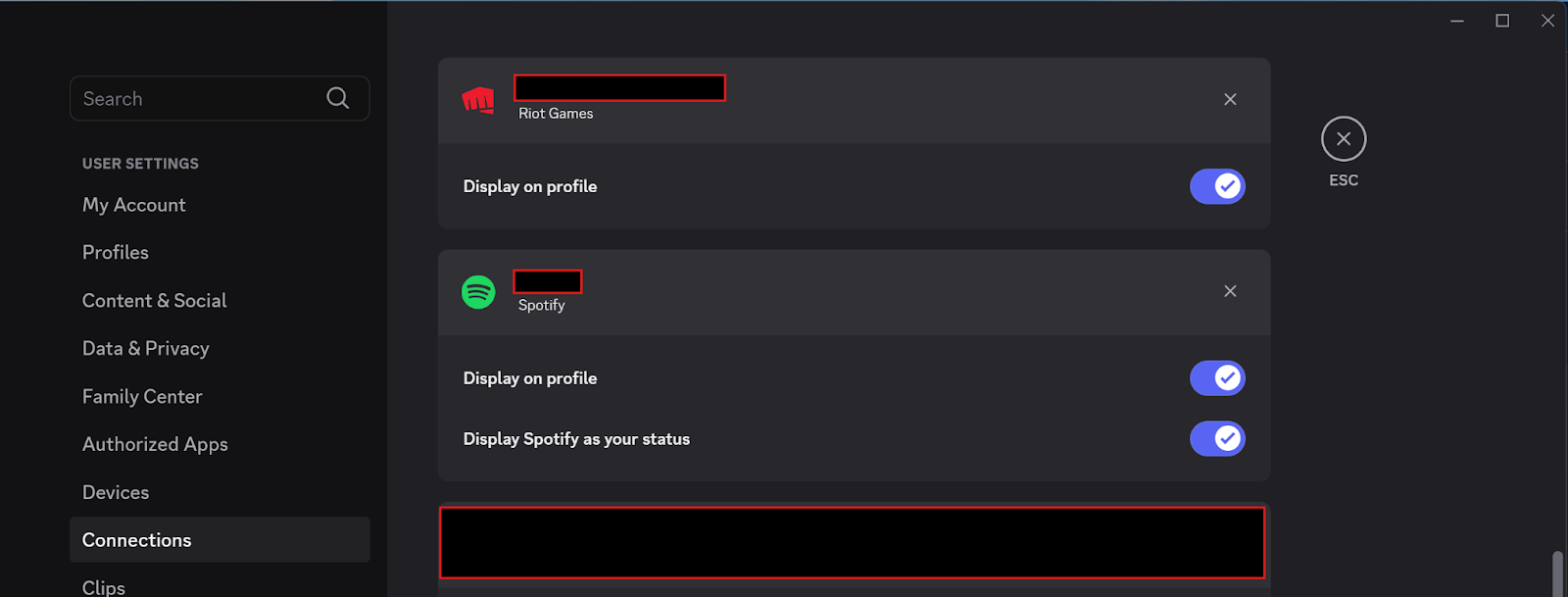
If you'd rather make the change from Discord, go to your Discord settings, find your Riot account connection, and click the "X" to unlink.
You can unlink/relink your Discord and Riot Account as many times as you like, but each Riot Account can only be linked to one Discord account at a time, and vice versa.
