
Keyboard WASD is an alternative way you can play League of Legends by using your keyboard to control your champion's movement as well as other in-game actions that would otherwise require a mouse.
How does it work?
In simple terms, the Keyboard (WASD) settings allow you to set hotkeys that replace many of the actions that normally depend on mouse usage, such as:
- Champion movement & basic attacks
- Camera control
- Champion abilities
For example, instead of right-clicking to move your champion, you'd simply use the WASD keys to move up, left, down, and right (respectively).
In what modes can I use the keyboard (WASD) input?
Keyboard (WASD) is available across all game modes (including the Practice Tool).
Why is Riot adding this to the game?
To help new players to better integrate into the game by using controls they might already be familiar with in other games, while also giving League players an alternative playing style they can also enjoy.
I'm new to the game. Does that mean I have to play with Keyboard (WASD)?
Nope. The default input continues to be Point & Click; if you want to try Keyboard (WASD), you can enable it whenever you like, even in the Tutorial!
In-Game Settings
Input Selection Lockdown
You need to lock the input settings you’ll be using during the game within the first 10 minutes of the match. Afterward, the system automatically locks the latest input, and you’ll be using it until the end of the game.
In the game Client, press Esc to open the Options menu, where you'll find the Hotkeys menu. There, you can select the Keyboard (WASD) input to enable it. Since League has a wide variety of champions and in-game mechanics, each champion can have its own keybinding profile, giving the possibility to experiment which setting suits the best for the current game.
- The first time you enable Keyboard (WASD), your camera settings will be set to Dynamic Camera to always show your champion in your screen; you can disable this in the Camera menu.
- Saving your settings will keep the customization for all your future games.
- Hotkeys can be customized for your current champion, or as a global setting for this input. Once customized, you can alternate between Keyboard (WASD) and Mouse (Point & Click). This can’t be done out of game, so make sure you go into the Practice Tool and set them up before jumping into the frey.
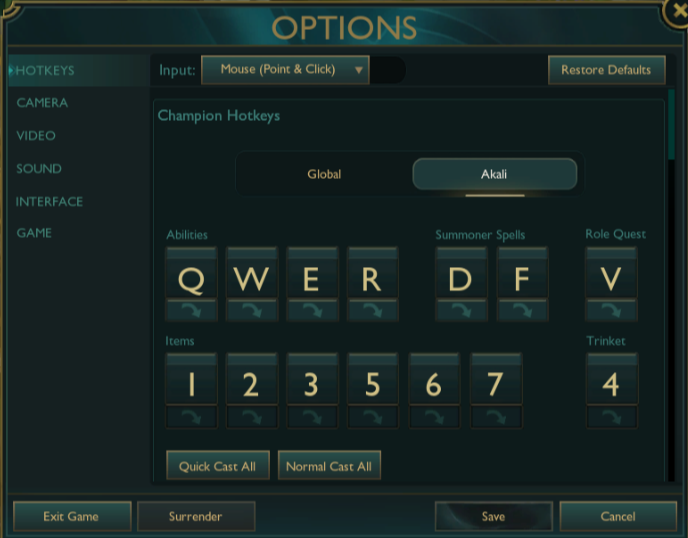
Remember: Hotkey settings are independent of one another, which means you can use one key to open the shop in Point & Click, and have a different one for Keyboard (WASD) inputs.
- If you'd like to know more about the Point & Click input, check our Hotkeys (Keybindings) FAQ article.
These are the default ability keybindings for Keyboard (WASD):
| Key | Action |
| MB1 (left-click) | Confirm Cast |
| MB2 (right-click) | Ability 1 |
| Shift | Ability 2 |
| E | Ability 3 |
| R | Ultimate Ability |
| Q | Summoner Spell 1 |
| F | Summoner Spell 2 |
| C | Cancel Cast |
Additionally, you can also enable an option to make your champion to move at a 45-degree angle by pressing any movement key (aligning your movement with the map layout).
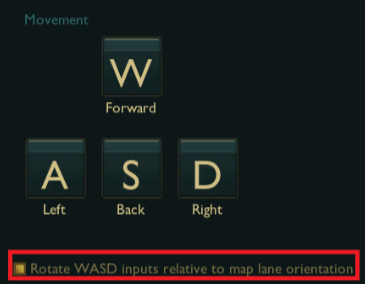
Does this mean that I can throw away my mouse?
Not necessarily; in the Keyboard (WASD) input, you can still use your mouse for attacking (left-click), and the M3 button to use the Scout Ahead feature, which allows you to scout the map to see farther away from your champion. That being said, you can also set keys for these actions, so feel free to explore the settings to the fullest!
- The Scout Ahead setting is enabled by default the first time you activate Keyboard (WASD). You can disable it in the Camera menu.
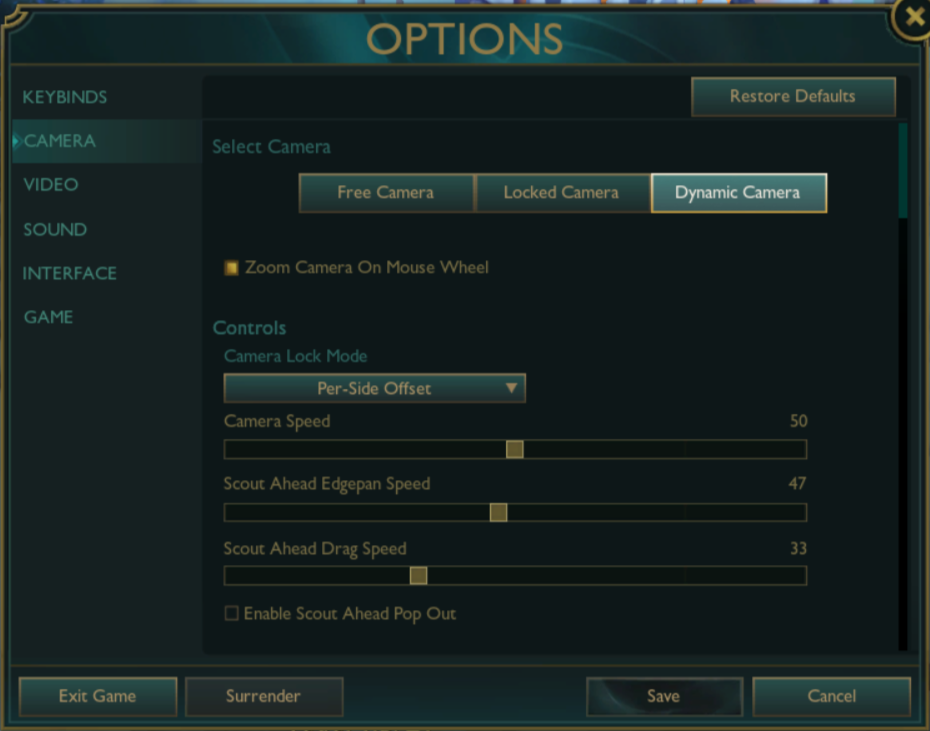
Dynamic Camera Settings
If the new camera moves too much for your liking, use the speed slider to slow it down.
Need any help?
If you encounter an error or bug when using the Keyboard input, click the Report a Bug button in the bottom-right corner of the League Client to submit a report and we'll take a look.
If something's not quite working right and it's affecting your gameplay, Submit a Request and our support team will rush to your aid!
